
World News
Flash display screen throughout audio notifications in Windows 11
Flash display screen throughout audio notifications in Windows 11
This submit will present you methods to activate the Accessibility characteristic that can flash your pc display screen once you obtain an audio notification in Windows 11 utilizing Windows Settings, Control Panel or Registry Editor.
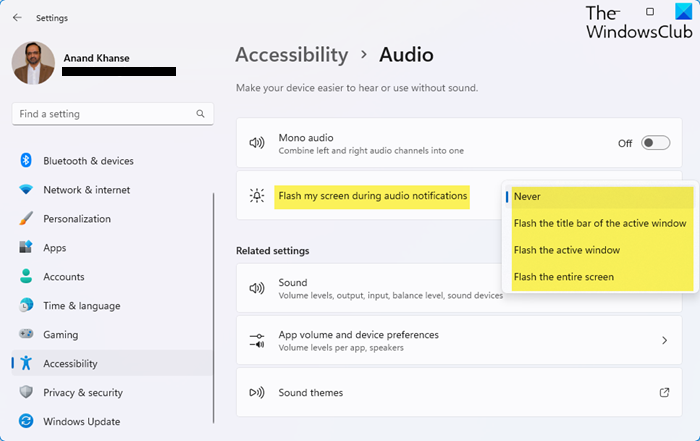
Enable Flash display screen throughout audio notifications in Windows 11
To activate the Flash display screen throughout audio notifications in Windows 11, take these steps:
- Open Windows Settings
- Click open Accessibility settings from the left facet
- Locate Audio settings
- You will see a drop-down menu againsta Flash my display screen throughout audio notifications setting
- You will see for choices obtainable:
- Never
- Flash the title bar of the lively window
- Flash the lively display screen
- Flash the whole display screen
- Select the choice you need and the setting will take impact straight away.
Read: Windows 11 Accessibility Settings and Features
Turn on Visual results for sound utilizing Control Panel
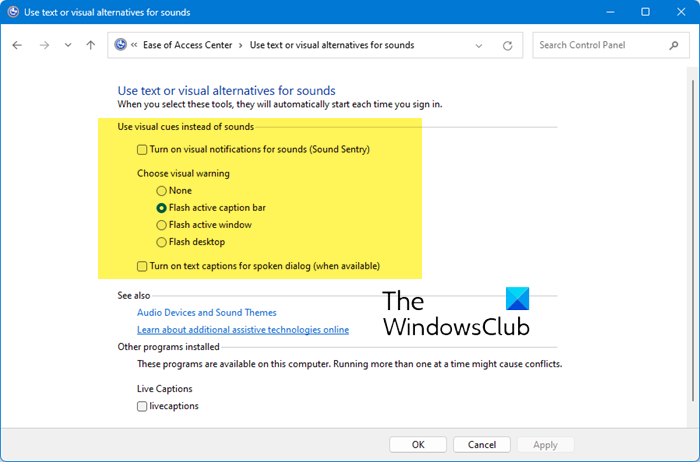
To activate Visual results for sound utilizing Control Panel:
- Open Control Panel
- Open Ease of Access Center
- Locate Use textual content or visible options for sounds
- Select Turn on visible notifications for sounds (Sound Sentry)
- Select the setting you need beneath Choose visible warning:
- None
- Flash lively caption bar
- Flash lively window
- Flash desktop
- Click Apply and restrt your pc.
Turn on Visual Alerts for Sound utilizing Registry Editor
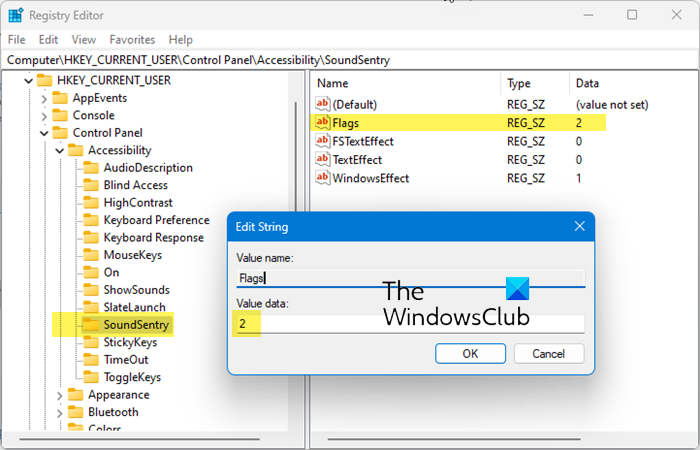
Open Registry Editor and navigate to the next key:
HKEY_CURRENT_USERControl PanelAccessibilitySoundSentry
On the right-side, change the worth of Flags as required:
- 0 = None
- 1 = Flash lively title bar
- 2 = Flash lively window
- 3 = Flash total show
Close REGEDIT and restart your PC to make the chnages take impact.
Read: Make Notification dialog containers keep open longer in Windows 11
How do I flash my display screen throughout audio notification?
To allow display screen flashing for audio notifications in Windows, entry Accessibility settings with Windows key + U, navigate to Audio beneath the Hearing part, and choose ‘Flash my display screen throughout audio notifications’ from the drop-down menu.
How do I get the flash display screen on my notifications on Windows 10?
To allow a flash display screen for notifications on Windows 10, go to the ‘Ease of Access’ settings. Under ‘Audio’ choices, choose ‘Show audio alerts visually’. Choose from flashing the title bar, the lively window, or the whole display screen.

HI-FI News
through The Windows Club https://ift.tt/97PaykY
April 28, 2024 at 03:36PM
-
Product on sale
 Audiophile Vinyl Records Cleaning BundleOriginal price was: €69.90.€59.90Current price is: €59.90. incl. VAT
-
Product on saleEasy Start Vinyl Records Cleaning KitOriginal price was: €69.90.€59.90Current price is: €59.90. incl. VAT
-
Vinyl Records Cleaner Easy Groove Concentrate€34.95 incl. VAT
-
Easy Groove Super Set€199.00 incl. VAT
-
Easy Groove Enzycaster – vinyl records prewash cleaner€34.95 incl. VAT
-
Easy Groove Extreme MK. II- vinyl records prewash cleaner€45.00 incl. VAT
-
Vinyl Records Cleaner – Easy Groove Virgin Concentrate€35.00 incl. VAT
-
Easy Groove Spray&Wipe vinyl records cleaner€34.95 incl. VAT


