
World News
“No Output Device Found” Audio Error in Windows 11?
“No Output Device Found” Audio Error in Windows 11?

An audio output gadget looks like it might be a easy addition to your Windows setup, however since so many desktop PCs use what are referred to as “soundcards“, it’s extra sophisticated. If you need nice encompass sound and a subwoofer to your gaming, that’s nice, and there are some superb soundcards that offer you audiophile-quality audio. But… Windows finally ends up with lots of sophisticated software program and drivers associated to audio output consequently.
Sometimes your soundcard merely fails or is dislodged, or you might have audio system that get unintentionally unplugged, however you may as well disable the audio output completely, which is the place that error “no output gadget discovered” originates. If your speaker was damaged or unplugged, after all, you wouldn’t see any error, you simply wouldn’t be getting any sound!
LET’S START WITH THE ERROR
Okay, so right here’s the error I anticipate you’re seeing whenever you go into the Windows 11 System Settings and have a look at System > Sound:
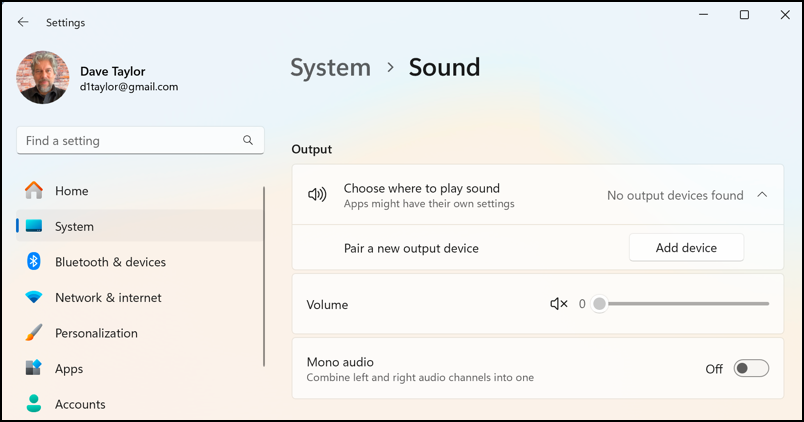
You can see that there are not any choices for “Choose the place to play sound”, it merely studies the alarming error message No output gadgets discovered.
You can add a tool like a Bluetooth speaker if you would like by clicking “Add gadget”…
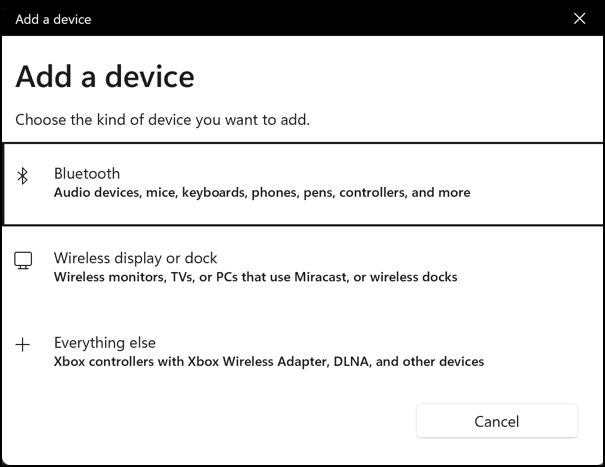
But that gained’t repair the issue of the built-in speaker not exhibiting up!
DIGGING FOR SOLUTIONS IN SYSTEM SETTINGS
Instead, scroll down on the System > Sound window to seek out the Advanced choices:
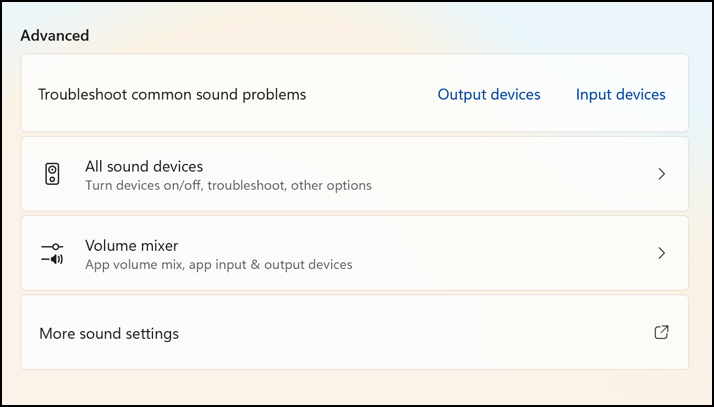
Choose “All sound gadgets” (and see the clue right here: “Turn gadgets on/off”).
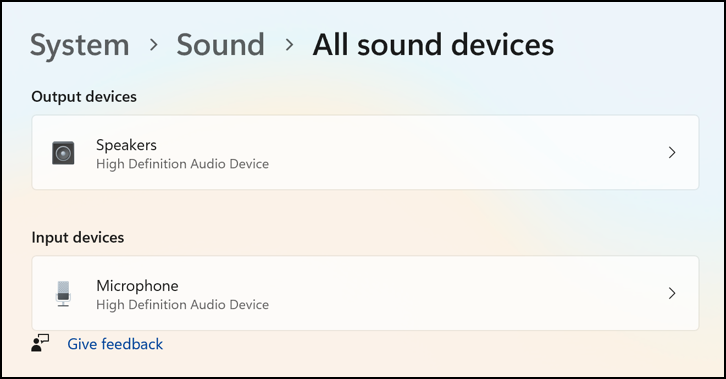
There’s what ought to be my output and enter gadgets; High Definition Audio Device audio system and a High Definition Audio Device microphone. One extra click on, this time on the output gadget, and…
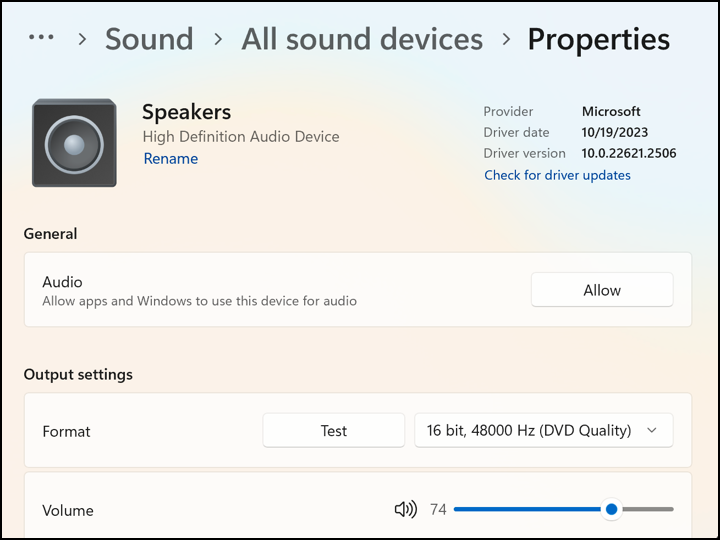
Herein lies the issue.
PROBLEM FOUND, AND IT’S SUBTLE
You should suppose like a Windows developer to get what’s occurring right here: The button “Allow” doesn’t imply that the present setting is allowed, however that the present setting is not allowed and that when you click on on the button, you’ll permit entry to the speaker.
You can confirm this by clicking on the “Test” button under. It gained’t work, will it? No output gadget! Click on “Allow” and issues will stay complicated…
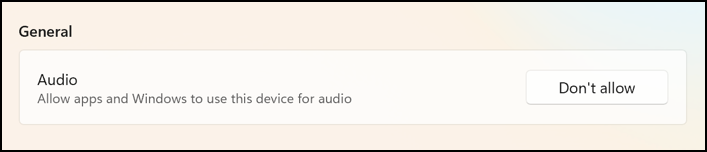
however now it really works. Click on “Test” and I guess you’ll hear audio out of your audio system. If not, test the amount setting, any bodily quantity controls in your gadget, and double test it’s not muted.
Fixed. I hope!
WHILE WE’RE HERE: SPATIAL SOUND
One actually cool function to allow whereas we’re right here is spatial sound which will provide you with extra of a way of depth or encompass, even with two audio system. Just scroll down additional on the All sound gadgets window:
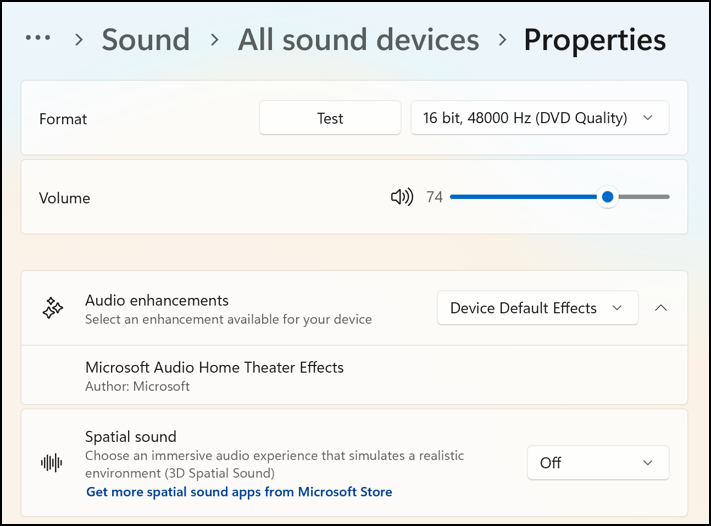
It’s the very backside possibility: “Spatial sound”. Here the button is a menu and it signifies the present state (not like the sooner button which reveals the other of the present state. What a complicated design, eh?). Click to change it to “On” and also you’re able to hopefully hear extra depth out of your audio. Now that you’ve your speaker working!
Pro tip: I’ve been writing about Microsoft Windows for a few years. Please take a look at my in depth Windows assist space for extra helpful tutorials when you’re visiting the location!
The put up “No Output Device Found” Audio Error in Windows 11? initially appeared on Ask Dave Taylor.
HI-FI News
by way of Ask Dave Taylor https://ift.tt/6DQ5XjK
April 30, 2024 at 10:17PM
-
Product on sale
 Audiophile Vinyl Records Cleaning BundleOriginal price was: €69.90.€59.90Current price is: €59.90. incl. VAT
-
Product on saleEasy Start Vinyl Records Cleaning KitOriginal price was: €69.90.€59.90Current price is: €59.90. incl. VAT
-
Vinyl Records Cleaner Easy Groove Concentrate€34.95 incl. VAT
-
Easy Groove Super Set€199.00 incl. VAT
-
Easy Groove Enzycaster – vinyl records prewash cleaner€34.95 incl. VAT
-
Easy Groove Extreme MK. II- vinyl records prewash cleaner€45.00 incl. VAT
-
Vinyl Records Cleaner – Easy Groove Virgin Concentrate€35.00 incl. VAT
-
Easy Groove Spray&Wipe vinyl records cleaner€34.95 incl. VAT


