
World News
Google NotebookLM: Expands Sources, Introduces Audio Features
Google NotebookLM: Expands Sources, Introduces Audio Features
Google’s NotebookLM permits you to experiment with an AI chat system targeted on sources you choose. The software leverages Google Gemini, a extremely succesful AI system, not solely to generate chat responses primarily based in your sources but in addition that can assist you arrange and discover the content material inside your sources.
For instance, it’s possible you’ll add a number of strains to a pocket book, then use NotebookLM to generate a personalized research information primarily based on a selected collection of these notes.
In September 2024, NotebookLM added an choice to create an audio overview, which builds a podcast-style dialog drawn out of your sources. This mixture of AI instruments, together with chat and notes-related options, makes NotebookLM one of the crucial efficient instruments for exploring concepts present in a targeted set of sources.
Users of NotebookLM should:
- Be a minimum of 18 years outdated.
- Have a Google account.
- Be in one of many 180 areas the place the Gemini API is offered.
NotebookLM is free to make use of, and Google doesn’t use your information to coach NotebookLM. However, NotebookLM is experimental and, like most AI providers, might generally present incorrect info. Five core capabilities of Google’s NotebookLM — as of September 2024 — are lined beneath. Visit NotebookLM and check in with a Google account to get began.
SEE: Google Chrome: Security and UI ideas you’ll want to know (TechRepublic Premium)
How do you employ Google’s NotebookLM?
While Google emphasizes chat and different AI-powered options of NotebookLM, the power to work with notes alongside sources may also be helpful. It additionally has the power to create an audio overview, offering a unique technique to course of your content material.
Add sources
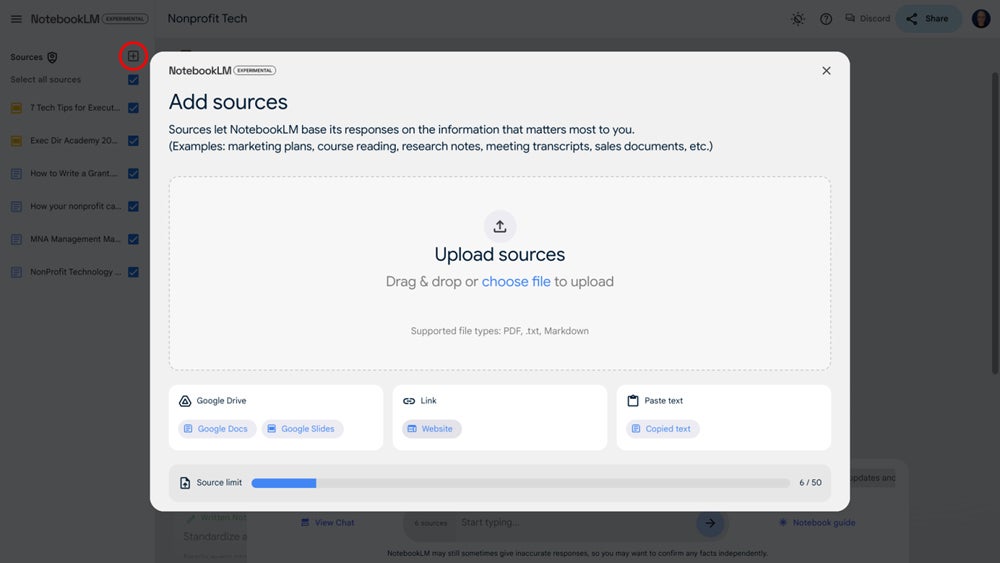
After creating a brand new pocket book and naming it, it’s possible you’ll add as much as 50 sources. These sources can embrace varied content material, together with Google Docs, Google Slides, texts, PDFs, and net hyperlinks. However, every supply have to be not more than 500,000 phrases lengthy. For context, that’s almost the mixed phrase depend of the three “Lord of the Rings” books by J.R.R. Tolkein. Therefore, file size possible is not going to be a priority for many enterprise or college makes use of.
Additionally, NotebookLM contains picture understanding, which implies it might course of and analyze info in photos included in your sources.
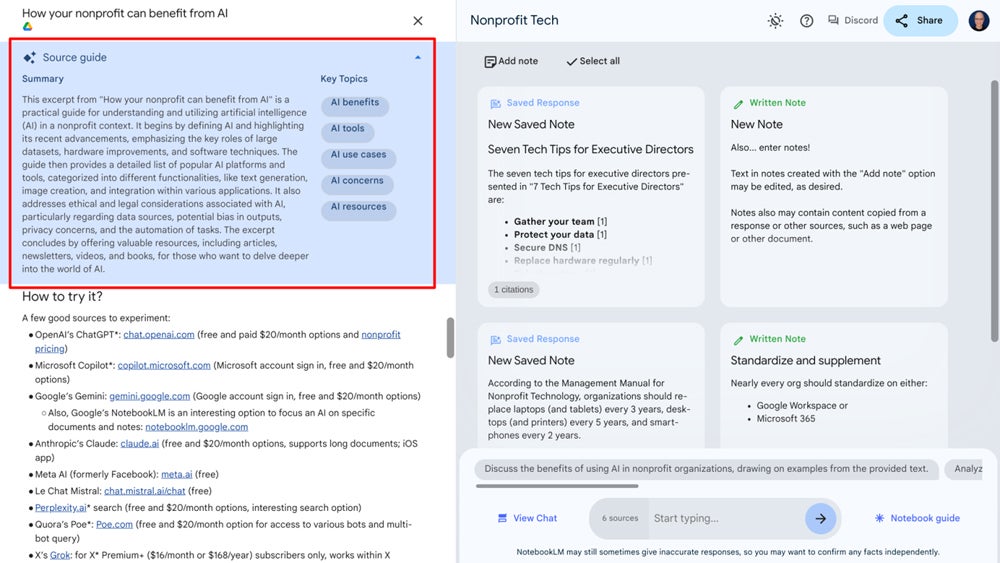
Access a supply abstract
Select any supply from the left-side record, and NotebookLM will show two AI-generated sections — a abstract and key matters — above the supply content material. The abstract seeks to seize the core ideas of the supply in a number of sentences. In distinction, the important thing matters might be seen as auto-generated prompts: Select a key subject from the record, and NotebookLM begins a brand new chat. For instance, a click on on a key subject of “Collaborative instruments” begins a chat with a “Discuss collaborative instruments” immediate.
Chat together with your sources
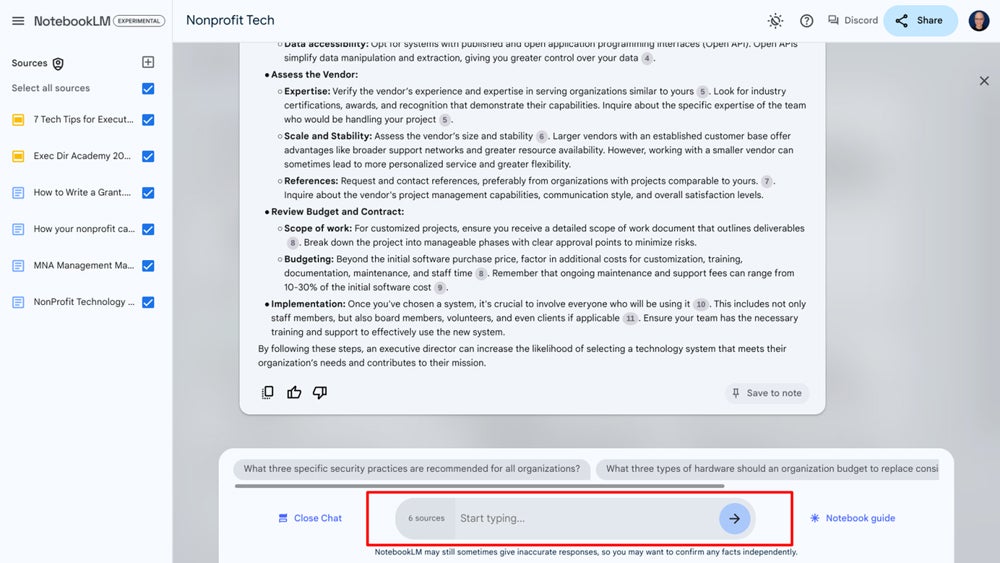
NotebookLM generates chat responses primarily based in your sources, making it an efficient software to interrogate a set of paperwork, slides, and hyperlinks. Ask a query, and the generated response might embrace info out of your sources, with numbered citations within the response that hyperlink on to the associated content material.
Not positive what to ask? Select any of the urged prompts that show above the immediate field. Want to edit a response for later use? Select the copy button within the decrease left, then paste the response in any customary textual content subject elsewhere — however please be aware that citations are omitted once you copy-and-paste a response on this method. You additionally might save a response to a be aware.
Make notes
There are two methods so as to add notes in NotebookLM:
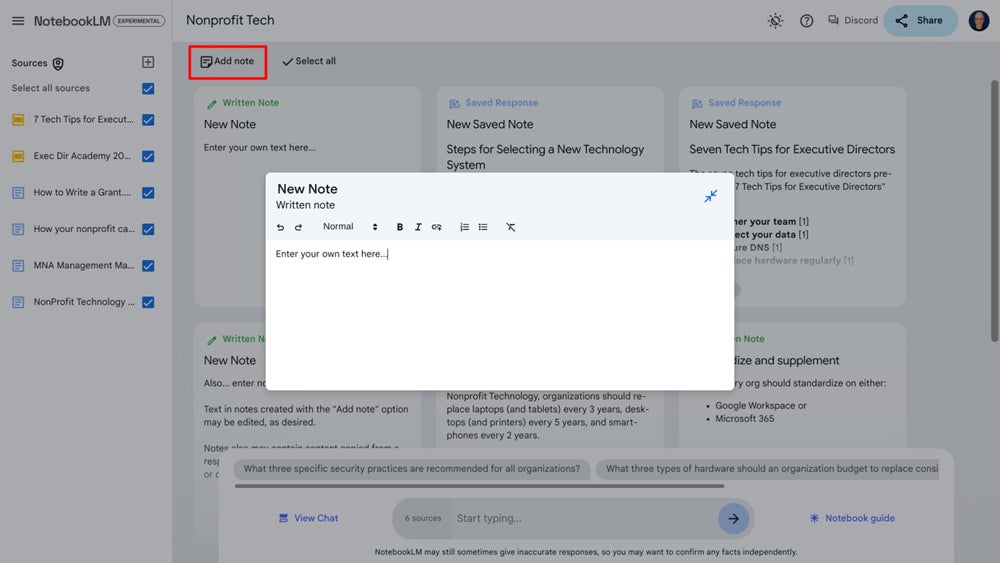
- To make a brand new be aware manually, choose the “Add be aware” icon, after which add your textual content. Once saved, it’s possible you’ll later choose and edit the title and contents of any manually created be aware.
- To save any AI generated chat response to a be aware, choose the “Save to notice” button within the decrease nook of a chat response. Notes created from an AI chat response could also be chosen and seen later, however the system gained’t allow you to edit the generated content material within the be aware.
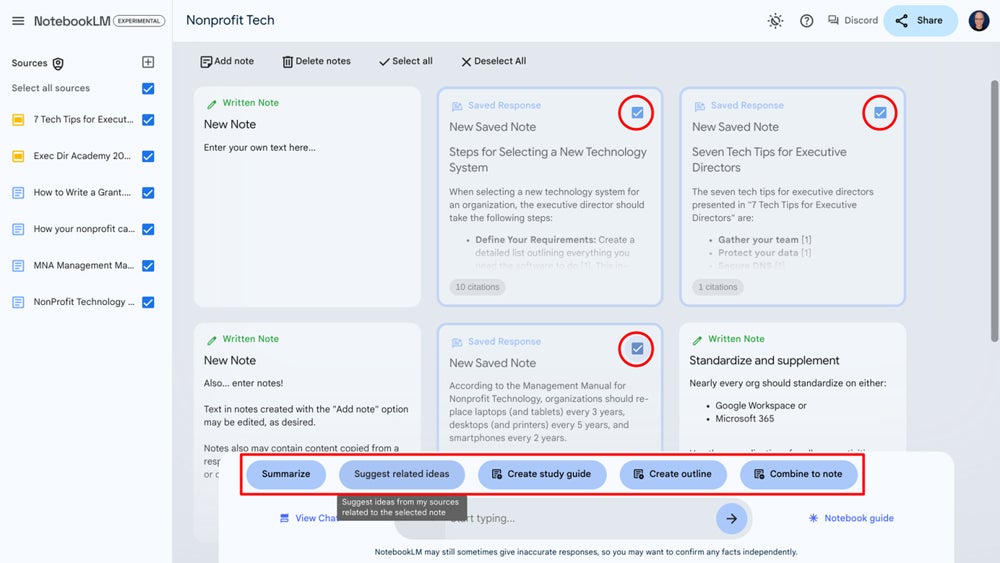
Creating and managing notes alongside supply content material gives a functionality that many college students, writers, and researchers would possibly discover useful. Select the checkbox within the upper-right nook of a number of notes, and NotebookLM shows text-buttons with actions to tackle the notes.
The be aware motion buttons can:
- Summarize the chosen notes.
- Suggest associated concepts.
- Create a research information.
- Create a top level view.
- Combine the chosen notes right into a single be aware.
Generate guides — together with audio!
The Notebook information possibility — situated within the lower-right space of the show — gives entry to a abstract of all sources, together with choices to generate a number of sorts of paperwork or an audio overview of your sources. The sorts of paperwork that NotebookLM can create are just like the be aware actions: FAQ, Study Guide, Table of Contents, Timeline, and a Briefing Doc. When you choose one in every of these, the system generates a brand new be aware that accommodates the kind of content material requested.
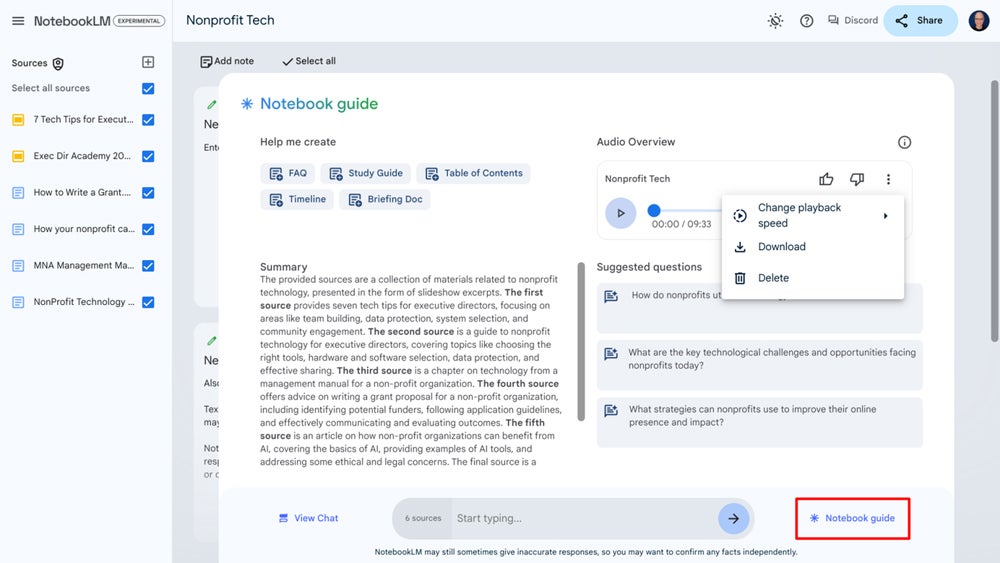
Select the “audio overview” possibility for the system to create a podcast-style dialogue with simulated voices about your content material. The overview might take a while to generate. After requesting it, you’ll be able to shut your browser and proceed with different duties. Even when an audio overview is prepared, it takes a little bit of time to load the generated audio. The generated audio does a powerful job of portraying hosts conversing about your content material.
Audio overview selectively focuses on parts of your content material. Think of it as a small sampler of your sources moderately than complete protection of each element. For instance, in one in every of my exams involving 4 paperwork and two displays, the generated audio overview ran for greater than 9 minutes. The dialog captured a minimum of three main elements of the content material but in addition lined some minor particulars {that a} human editor possible would have omitted.
HI-FI News
through Artificial Intelligence | TechRepublic https://ift.tt/GElPc4L
September 19, 2024 at 10:27PM
-
Product on sale
 Audiophile Vinyl Records Cleaning BundleOriginal price was: €69.90.€59.90Current price is: €59.90. incl. VAT
-
Product on saleEasy Start Vinyl Records Cleaning KitOriginal price was: €69.90.€59.90Current price is: €59.90. incl. VAT
-
Vinyl Records Cleaner Easy Groove Concentrate€34.95 incl. VAT
-
Easy Groove Super Set€199.00 incl. VAT
-
Easy Groove Enzycaster – vinyl records prewash cleaner€34.95 incl. VAT
-
Easy Groove Extreme MK. II- vinyl records prewash cleaner€45.00 incl. VAT
-
Vinyl Records Cleaner – Easy Groove Virgin Concentrate€35.00 incl. VAT
-
Easy Groove Spray&Wipe vinyl records cleaner€34.95 incl. VAT


