World News
Realtek Audio Not Working? Quick Fixes Inside!
Realtek Audio Not Working? Quick Fixes Inside!
Dealing with Realtek audio points might be extremely irritating, particularly while you’re attempting to hitch that vital Zoom name or get pleasure from your favourite playlist. I’ve helped numerous customers via these actual issues, so let’s break down the options in a means that really is sensible.
Understanding Why Realtek Audio Stops Working
Think of your pc’s audio system like a sequence of linked elements – when one hyperlink breaks, the entire system can fail. The commonest causes your Realtek audio may cease working embrace:
– Windows updates gone incorrect
– Corrupted or outdated drivers
– Hardware conflicts
– Windows audio service points
Quick Fixes You Can Try Right Now
Before we dive into the extra advanced options, let’s begin with some easy fixes that usually do the trick:
1. Restart your Windows Audio Service:
– Press Windows + R
– Type “providers.msc”
– Find “Windows Audio”
– Right-click and choose “Restart”
2. Check your default audio machine:
Right-click the speaker icon in your taskbar and choose “Sound settings” to ensure your Realtek machine is about as default.
The Driver Update Solution
Here’s one thing I’ve observed repeatedly – Windows Update doesn’t at all times set up one of the best model of Realtek drivers. Instead, do this extra dependable method:
1. Visit the official Realtek web site or your PC producer’s help web page
2. Download the newest audio driver particularly to your mannequin
3. Uninstall your present Realtek driver from Device Manager
4. Install the brand new driver you downloaded
5. Restart your pc
When Nothing Seems to Work
If you’re nonetheless having points, right here’s my go-to superior repair that works about 90% of the time:
1. Open Device Manager
2. Expand “Sound, video and sport controllers”
3. Right-click in your Realtek machine
4. Choose “Uninstall machine”
5. Check the field that claims “Delete the driving force software program for this machine”
6. Restart your PC
7. Windows will routinely reinstall a recent copy of the driving force
Preventing Future Audio Issues
To keep away from working into these issues once more, I at all times advocate:
– Creating a system restore level earlier than main Windows updates
– Regularly checking for driver updates (however don’t depend on Windows Update)
– Keeping word of when your audio began working correctly so you’ll be able to hint again any adjustments if issues happen
Remember, in case you’re nonetheless experiencing points after attempting these options, the issue is perhaps hardware-related. In that case, you may need to think about using an exterior USB sound card as a short lived repair when you examine additional.
HI-FI News
by way of Mac Issues https://macissues.com
February 19, 2025 at 04:03AM
-
Product on sale
 Audiophile Vinyl Records Cleaning BundleOriginal price was: €69.90.€59.90Current price is: €59.90. incl. VAT
-
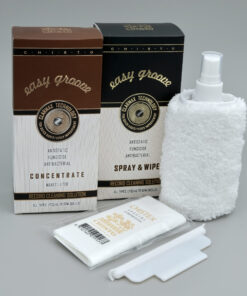
Product on saleEasy Start Vinyl Records Cleaning KitOriginal price was: €69.90.€59.90Current price is: €59.90. incl. VAT
-
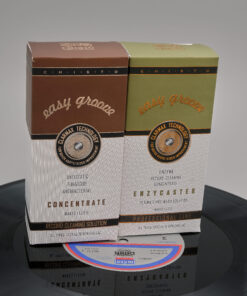
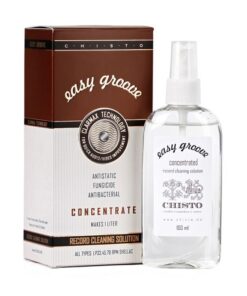
Vinyl Records Cleaner Easy Groove Concentrate€34.95 incl. VAT
-
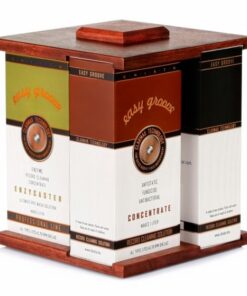
Easy Groove Super Set€199.00 incl. VAT
-
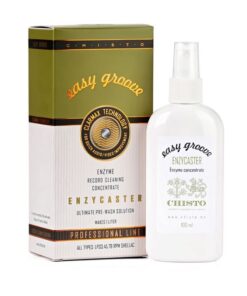
Easy Groove Enzycaster – vinyl records prewash cleaner€34.95 incl. VAT
-
Easy Groove Extreme MK. II- vinyl records prewash cleaner€45.00 incl. VAT
-
Vinyl Records Cleaner – Easy Groove Virgin Concentrate€35.00 incl. VAT
-
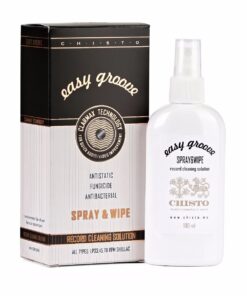
Easy Groove Spray&Wipe vinyl records cleaner€34.95 incl. VAT