
World News
Audio Balance Keeps Changing Automatically on MacEbook
Audio Balance Keeps Changing Automatically on MacEbook
When you manually change the amount in your MacEbook, you might typically discover that the audio steadiness adjustments mechanically. This could be very annoying as your MacEbook’s audio system grow to be louder on one facet or the opposite.
Sometimes, the audio steadiness can shift fully to at least one facet.
It appears that this subject happens if you happen to shortly flip the amount up or down whereas your Mac is underneath heavy load.
This also can occur whenever you join your AirPods or one other Bluetooth audio machine to your laptop.
The audio steadiness bug has been affecting macOS for years. It’s one of many oldest macOS bugs. It’s been round for 10 years and counting.
Unfortunately, unpairing or forgetting your units doesn’t repair this glitch.
Adjust Your Audio Settings
One strategy to cope with this bug is to open the Sound pane from Settings and tweak your audio steadiness settings after you modify the amount or join a Bluetooth machine.
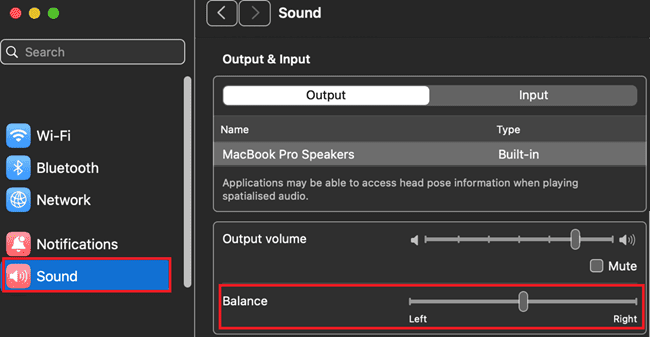
However, you’ll want to regulate your audio settings each time you modify the amount or join a Bluetooth machine to your Mac.
The excellent news is that there’s a higher answer, nevertheless it includes putting in a third-party app in your MacEbook.
Get the Balance Lock App
Another strategy to do away with this subject is to put in the Balance Lock app. You can obtain it without cost from the Mac App Store.
With the assistance of this app, you’ll be able to lock the audio steadiness proper within the center.
Change Your Audio MIDI Setup Format
If you don’t need to set up third-party apps in your machine and this glitch happens solely whenever you join your Bluetooth units, you’ll be able to tweak your audio settings.
Launch the Audio MIDI Setup app, choose your AirPods or your Bluetooth machine as your output machine, after which change the Format to 1 Channel 16-bit or 1 Channel 32-bit and save the settings.
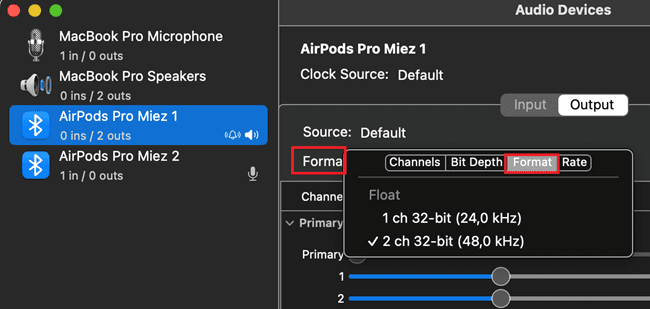
Wait for 30 seconds, then change the format again to 2 CH.
Hit the feedback beneath and tell us which answer labored greatest for you.
Madalina has been a Windows fan ever since she bought her arms on her first Windows XP laptop. She is taken with all issues know-how, particularly rising applied sciences — AI and DNA computing specifically.
HI-FI News
by way of AppleToolBox https://ift.tt/TM8xqC6
March 1, 2024 at 08:24AM
-
Product on sale
 Audiophile Vinyl Records Cleaning BundleOriginal price was: €69.90.€59.90Current price is: €59.90. incl. VAT
-
Product on saleEasy Start Vinyl Records Cleaning KitOriginal price was: €69.90.€59.90Current price is: €59.90. incl. VAT
-
Vinyl Records Cleaner Easy Groove Concentrate€34.95 incl. VAT
-
Easy Groove Super Set€199.00 incl. VAT
-
Easy Groove Enzycaster – vinyl records prewash cleaner€34.95 incl. VAT
-
Easy Groove Extreme MK. II- vinyl records prewash cleaner€45.00 incl. VAT
-
Vinyl Records Cleaner – Easy Groove Virgin Concentrate€35.00 incl. VAT
-
Easy Groove Spray&Wipe vinyl records cleaner€34.95 incl. VAT


