
World News
Fix ‘Cannot Send Audio Messages at This Time’ Phone Error
Fix ‘Cannot Send Audio Messages at This Time’ Phone Error
The “Cannot Send Audio Messages at This Time” problem on iMessage is annoying, however it has a number of easy options. You don’t have to surrender on voice messages altogether. When I received this error message, I couldn’t ship audio recordsdata even after switching to a secure Wi-Fi community. Thankfully, my messages began pushing by means of as soon as I adopted the right troubleshooting steps.
How Do I Fix My Audio Messages on My iPhone?
Try these fundamental options earlier than diving into the extra detailed steps for troubleshooting the “Cannot Send Audio Messages at This Time” Error.
- Fix community points: An unstable community connection impedes the voice messaging options of iMessage. Try switching between your mobile community and a secure Wi-Fi community.
- Restart your machine: A easy restart might reset the software program points affecting iMessage. Hold the amount and energy button, drag the Slide to Power Off slider, and press the amount and energy button once more.
- Relaunch iMessage: Do a half-swipe from the underside of the display and swipe up on the iMessage app preview. Wait a couple of minutes earlier than relaunching it.
If you’re nonetheless having points with voice messages regardless of switching community connections and restarting your machine, transfer on to those superior options.
1. Check if the Recipient Is Available for Audio Messages
iMessage is unique to Apple gadgets. Once your contact switches to Android from iOS, their previous iMessage account gained’t be reachable anymore. You can solely ship common SMS messages transferring ahead. So be sure to’re recipient’s utilizing a suitable Apple machine earlier than utilizing the audio messaging function of iMessage.
Time wanted: 1 minute
Here’s find out how to examine in case your contact is utilizing iMessage:
- Open the Messages app, faucet the Compose New Message icon on the top-right nook of the display, and enter your recipient’s title.
- If their title populates in blue, they’ve iMessage. Contacts with a grey or inexperienced coloration can’t obtain audio messages—they’re both utilizing Android or their iMessage disabled.

Note: Of course, you may ask the recipient what machine they use. But you must also have an alternate since they may really feel uncomfortable answering prying questions.
2. Disable Sound Recognition
Sound Recognition detects preset sounds (e.g., barking canines, automobile horns, or shouting) you may miss whereas listening to music, watching movies, calling somebody, or strolling in a loud place. Although useful, it might additionally intervene with the audio messaging capabilities of your Messages app. Try turning it off first.
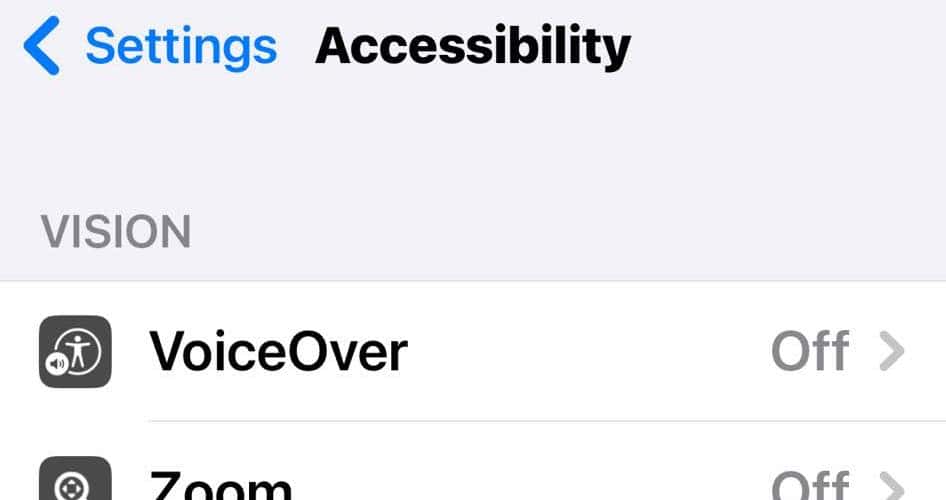
- Launch Settings > Accessibility and go to the Sound Recognition part.

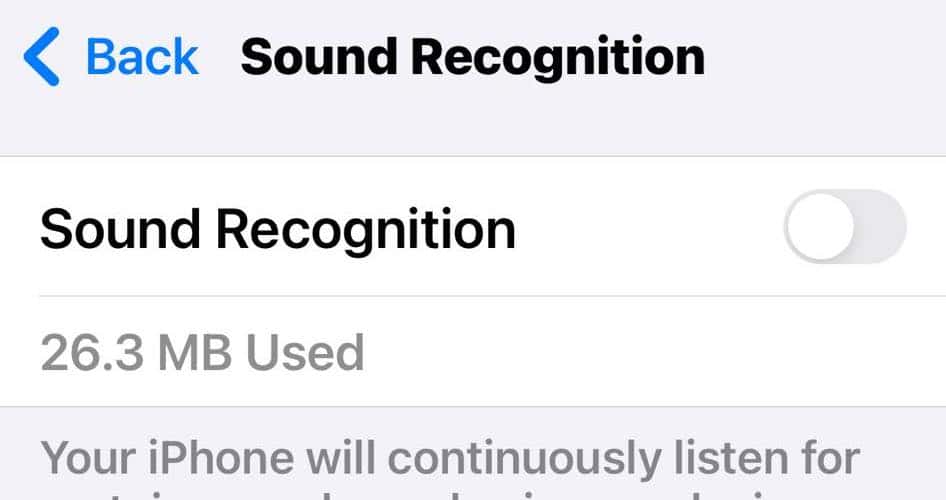
- Tap the toggle button subsequent to Sound Recognition to show off the function. Please notice that you simply may lose some preset sounds if you have already got inadequate space for storing.
3. Turn off Voice Control
Voice Control is a useful function that lets mobility-impaired people management their iPhones by means of voice instructions. It not often impacts the audio messaging operate of iMessage. But in the event you’re noticing compatibility points, flip off Voice Control quickly.
- Launch Settings > Accessibility and go to the Voice Control part.
- Tap the toggle button beside Voice Control to show off this function.

4. Disconnect Third-Party Peripherals
Disconnect and unpair third-party peripherals that disrupt iPhone audio message transmission, particularly these which can be malfunctioning. The Messages app might simply be struggling to select up your voice.
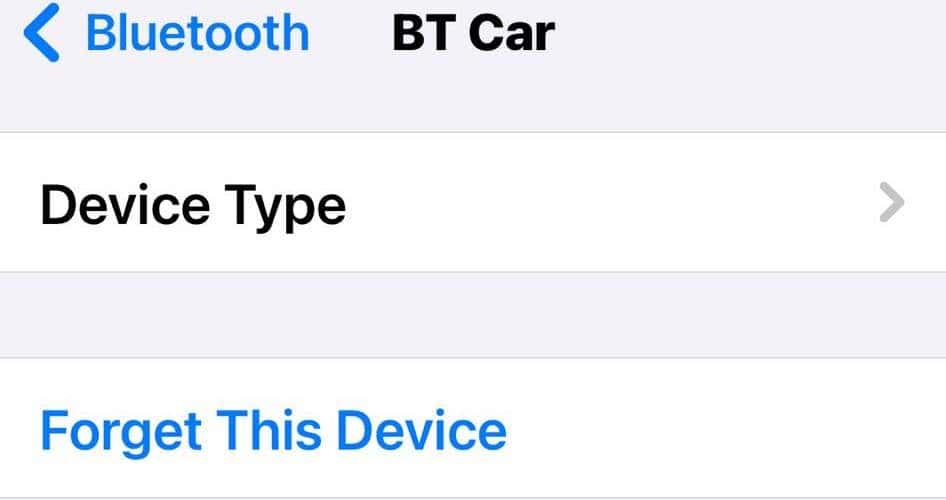
- Launch Settings > Bluetooth.
- Go to My Devices and search for the third-party peripherals interfering along with your built-in messaging app.
- Tap the data icon (i) beside its title > Forget This Device.
5. Update Your Messages App
Various irritating points may come up in the event you’re utilizing an outdated model of the Messages app. Always improve to the most recent model out there.
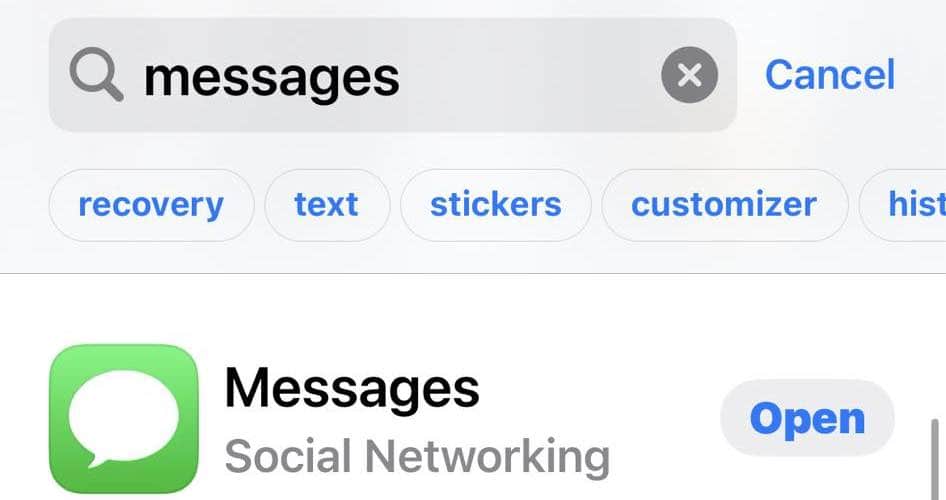
- Launch the App Store and kind Messages within the search bar.
- The first end result must be Apple’s default messaging service, though you may examine it with the one in your cellphone.
- If the motion button beside it says Update, your app is outdated. Download the most recent model, restart your machine, and see if the “Cannot Send Audio Messages at This Time” nonetheless seems.
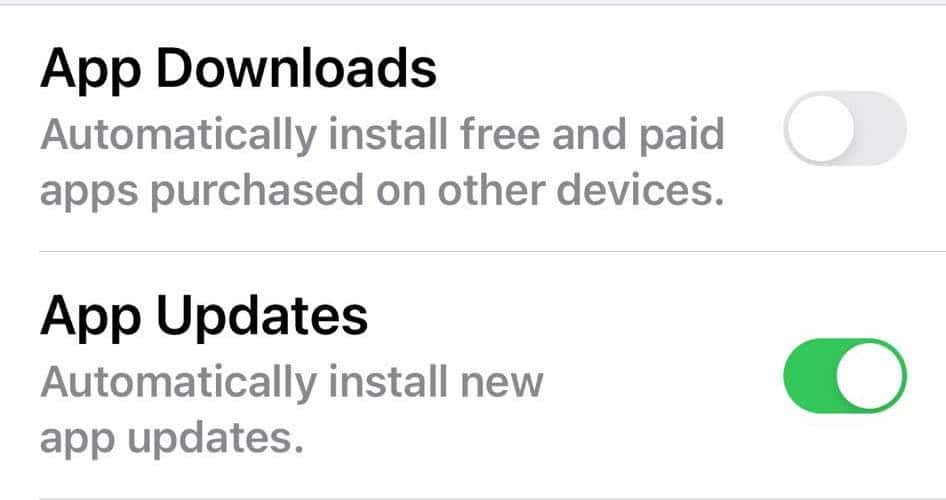
To guarantee your apps are at all times up to date, activate automated updates within the App Store.
- Open Settings > App Store.
- Scroll all the way down to the Automatic Downloads part and faucet the toggle button beside App Updates.
6. Adjust Settings for Keeping Audio Messages
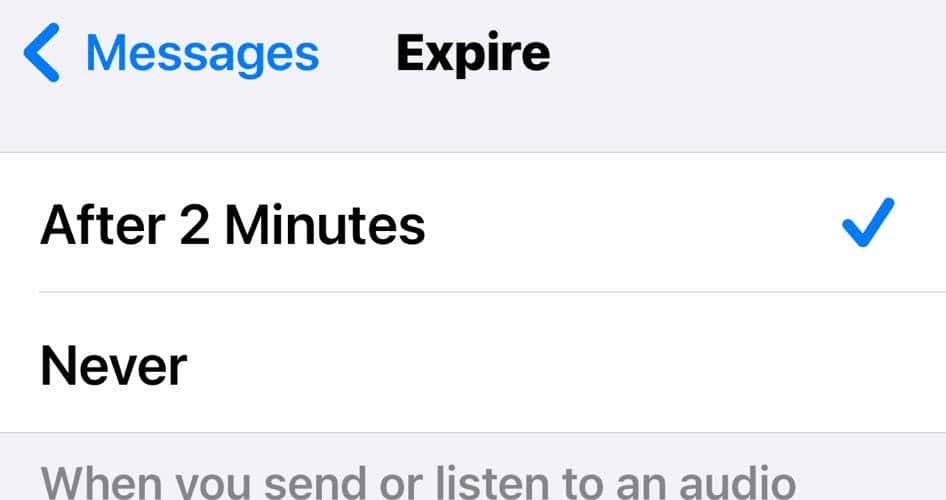
Stop protecting audio messages completely. Once you run out of space for storing, you’ll not be capable to ship or obtain voice messages.
- Launch the Settings app > Messages.
- Scroll all the way down to Audio Messages and open the Expire part.
- Select After 2 Minutes in order that iMessage mechanically deletes audio messages inside two minutes of you sending or receiving them.

7. Test Different Instant Messaging Platforms
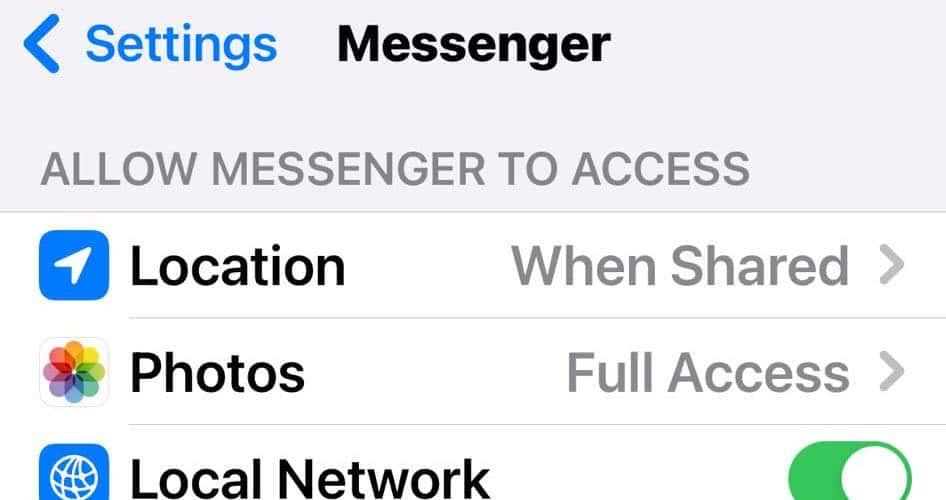
Try utilizing third-party messaging apps to see if it’s solely iMessage having bother sending audio messages. Note that these platforms have customized settings. You may need to discover their message settings and see if something is interfering along with your iPhone’s recording operate.
Also, examine if these apps have entry to your digicam and microphone.
- Launch Settings and scroll all the way down to the messaging app you’re testing.
- Turn on the toggle button for the microphone and digicam; in any other case, you gained’t be capable to ship audio or video messages.
8. Check for iOS Software Updates
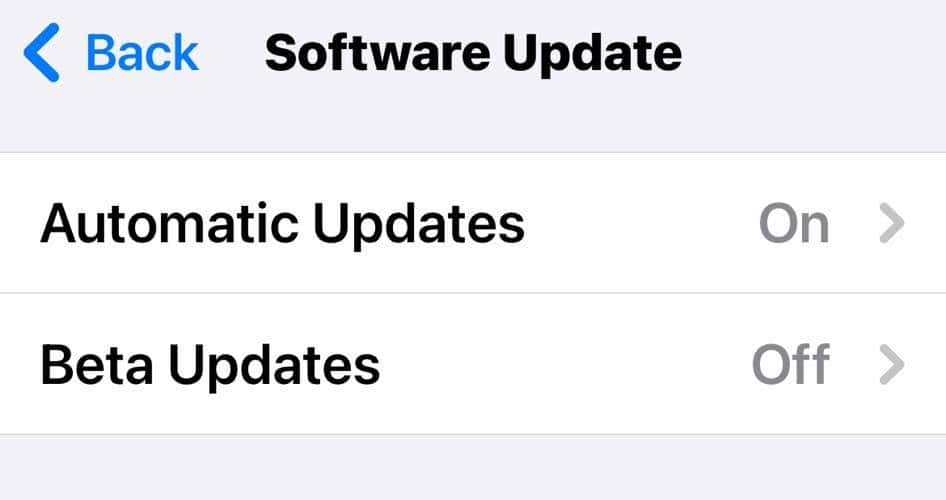
It’s a last-ditch effort, however it is best to examine for iOS software program updates. See if upgrading to the most recent iOS model fixes compatibility points along with your default messaging app and its voice recording operate. Apple may need not too long ago launched an replace.
- Launch Settings > General > Software Update.
- Check for any updates out there.
- Tap Download > Install and wait in your iPhone to restart fully.
Conclusion
The above fundamental steps can often repair the “Cannot Send Audio Messages at This Time” error on iMessage. Try restarting your iPhone in the event that they don’t work the primary time.
But ought to the error stay even after troubleshooting, name Apple Support for a extra intensive checkup. You may very well be coping with severe {hardware} or software program defects. Just be sure to allow iCloud on iMessage and arrange the backup course of earlier than sending your machine for repairs.
HI-FI News
through The Mac Observer https://ift.tt/tb1cJSC
November 22, 2023 at 02:01PM
-
Product on sale
 Audiophile Vinyl Records Cleaning BundleOriginal price was: €69.90.€59.90Current price is: €59.90. incl. VAT
-
Product on saleEasy Start Vinyl Records Cleaning KitOriginal price was: €69.90.€59.90Current price is: €59.90. incl. VAT
-
Vinyl Records Cleaner Easy Groove Concentrate€34.95 incl. VAT
-
Easy Groove Super Set€199.00 incl. VAT
-
Easy Groove Enzycaster – vinyl records prewash cleaner€34.95 incl. VAT
-
Easy Groove Extreme MK. II- vinyl records prewash cleaner€45.00 incl. VAT
-
Vinyl Records Cleaner – Easy Groove Virgin Concentrate€35.00 incl. VAT
-
Easy Groove Spray&Wipe vinyl records cleaner€34.95 incl. VAT


