
World News
Install Realtek HD Audio Driver Failure, error 0101
Install Realtek HD Audio Driver Failure, error 0101
In this text, we are going to speak about some fixes to resolve the Install Realtek HD Audio Driver Failure, error 0101 on Widows 11/10. When a driver malfunctions, the respective gadget stops working or doesn’t work correctly. These points are mounted by reinstalling or updating the respective gadget driver. According to the experiences, customers should not capable of repair sound points on their computer systems as a result of the set up of the Realtek HD Audio driver fails with the error code 0101.
Install Realtek HD Audio Driver Failure, error 0101
If you see the “Install Realtek HD Audio Driver Failure, error 0101” whereas putting in the Realtek HD Audio driver, comply with the ideas talked about beneath.
- Check for Windows Update
- Download the driving force from the official web site or set up its earlier model
- Use devoted software program out of your pc producer
- Install the driving force in Safe Mode
- Uninstall and reinstall the audio driver
- Use the Add legacy {hardware} possibility
- Perform a System Restore
Let’s see all these fixes intimately.
1] Check for Windows Update
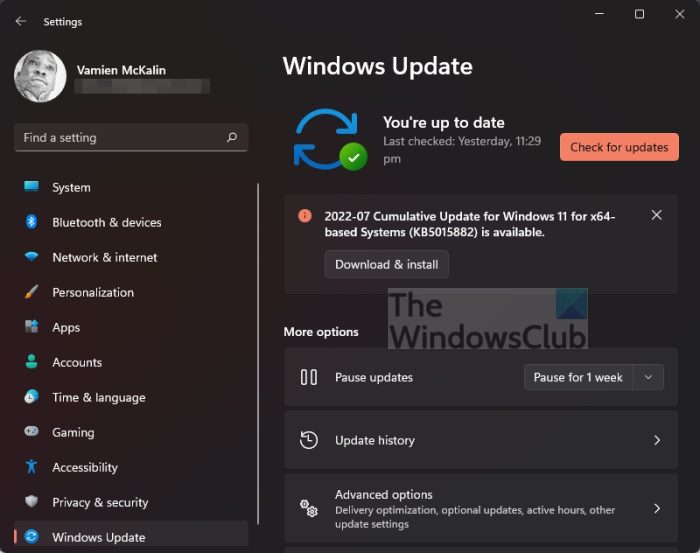
First of all, restart your pc and check out once more. Restarting the Windows pc fixes minor glitches. If this doesn’t work, verify for Windows Update. If an replace is obtainable, obtain and set up it.
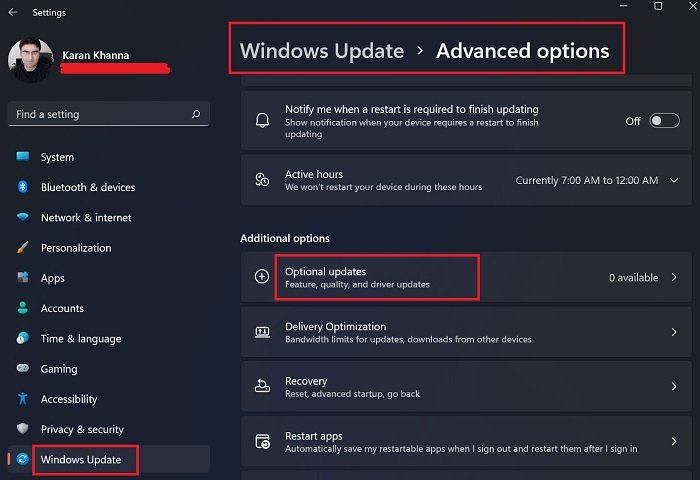
We additionally recommend you open the Optional Updates web page in your system settings and see if any updates on your Realtek HD Audio driver can be found there. If the replace is obtainable there, set up it.
2] Download the driving force from the official web site or set up its earlier model
We recommend you obtain the audio driver once more from the official web site of your pc producer after which set up it. See what occurs this time. All the drivers are listed on the official web site of the pc producer, so customers can obtain them simply. The Realtek drivers are additionally listed on the official Realtek web site. You may also obtain the driving force from there.
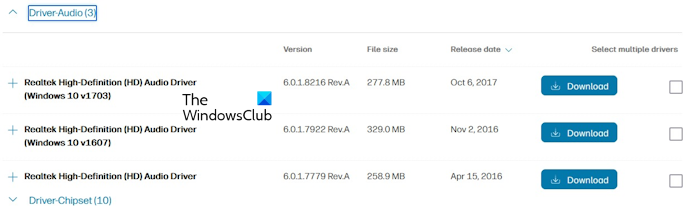
The course of to obtain the audio driver is similar for computer systems of all manufacturers:
- Visit the official web site of your pc producer.
- Enter your gadget mannequin quantity or serial quantity. Or, you may as well use the auto-detect function (if accessible on the web site).
- Find the Realtek HD Audio Driver and obtain its newest model.
You may also attempt to set up the earlier model of the driving force. If the most recent model is displaying the error through the set up, it could have bugs. Download its earlier model from the official web site and set up it.
3] Use devoted software program out of your pc producer
Computer manufacturing manufacturers present devoted software program to their customers free of charge. You can use this software program to troubleshoot completely different points and set up the required updates. If you’re experiencing sound points, you should utilize the software program based mostly in your pc model to repair the difficulty and replace the Realtek HD Audio Driver to the most recent model.
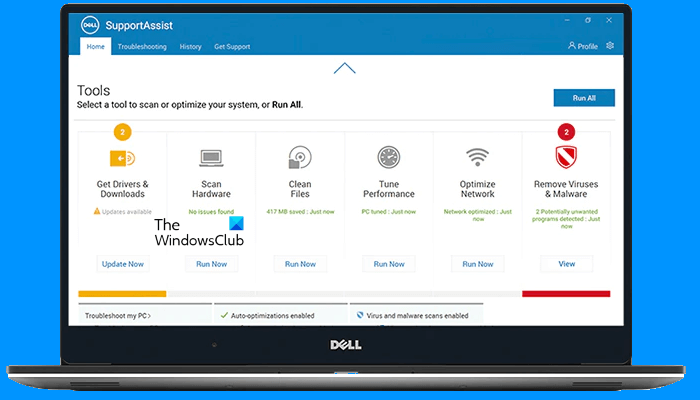
Some of the favored software program embrace:
4] Install the driving force in Safe Mode
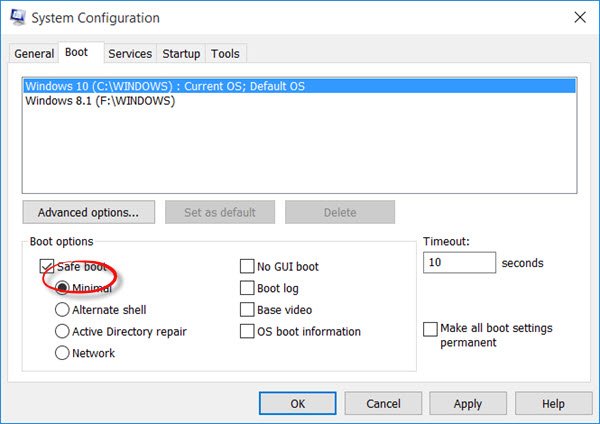
Safe Mode is a troubleshooting mode on Windows computer systems. You can not replace drivers in Safe Mode. However, the driving force set up by means of the set up file is feasible in Safe Mode. We recommend you put in the audio driver in Safe Mode by working the installer file.
5] Uninstall and reinstall the audio driver
The beforehand put in driver could cause points generally. Uninstall and reinstall the audio driver by way of the Device Manager. The following steps will information you on this:
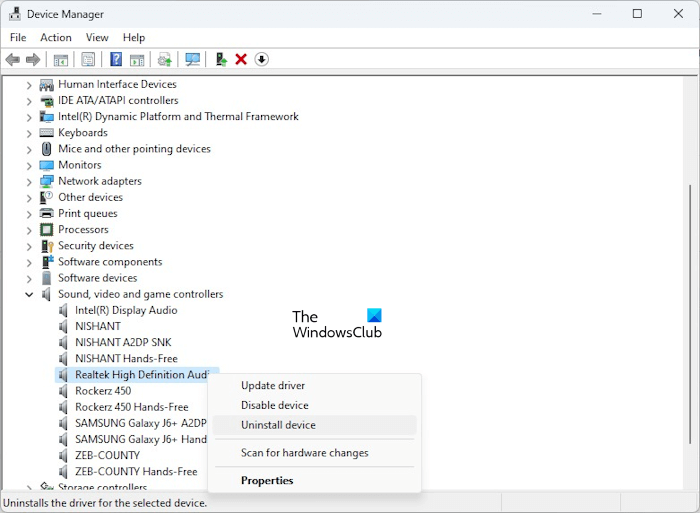
- Open the Device Manager.
- Expand the Sound, video and sport controllers department.
- Right-click on the Realtek High Definition Audio driver.
- Select Uninstall gadget.
After uninstalling the audio driver, restart your pc or carry out a scan for {hardware} modifications. If this doesn’t work, uninstall the audio driver once more after which run the installer file. See if the error happens through the set up.
6] Use the Add legacy {hardware} possibility
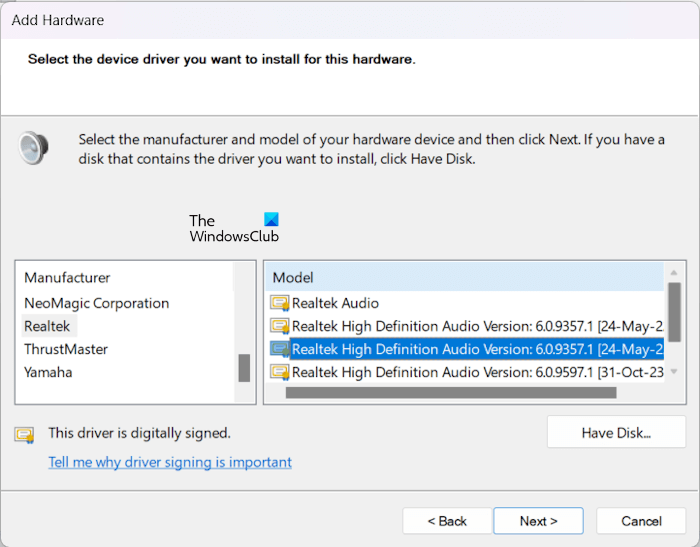
You may also use the Add legacy {hardware} possibility within the Device Manager to put in the Realtek HD Audio Driver in your system. The following steps will information you on this:
- Open the Device Manager.
- Select your pc title.
- Select Action > Add legacy {hardware}.
- Click Next and choose the Install the {hardware} that I manually choose from an inventory (Advanced) possibility.
- Click Next and choose the Sound, video and sport controllers possibility.
- Select Realtek from the checklist on the aspect.
- Now, choose the Realtek High Definition Audio driver from the checklist on the suitable aspect.
- Click Next to put in the driving force.
Check if the audio points are mounted in your system. If not, set up one other model of the driving force by following the identical steps written above.
7] Perform a System Restore
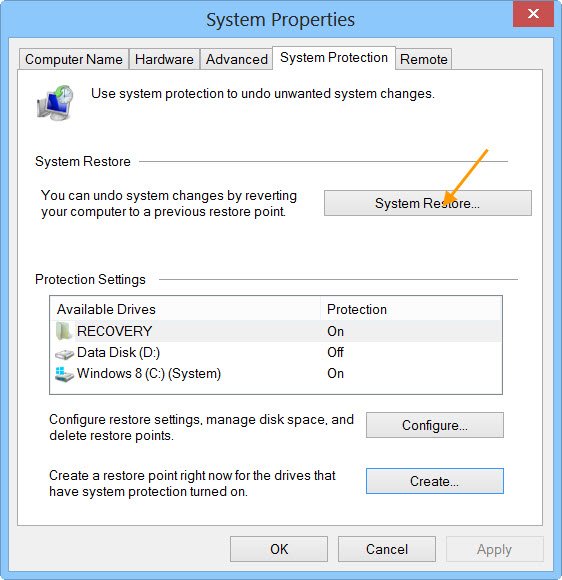
If not one of the above steps mounted the error, we advise you carry out System Restore. While restoring your system, choose the restore level that was created on the date at which your system was working nice. This motion will restore your system to the earlier working state and repair the difficulty.
Read: Install Realtek HD Audio Driver Failure, Error 0x00005b3
How to put in Realtek High Definition Audio driver for Windows?
You can set up Realtek High Definition Audio driver from the official web site of Realtek or your pc producer. After visiting your pc producer’s official web site, enter the mannequin quantity to obtain the suitable driver appropriate along with your system.
How do I repair a corrupted Realtek driver?
A corrupted Realtek driver causes audio points on a Windows pc. To repair it, open the Device Manager after which open the Realtek driver properties. You will see the error code and error message there. According to this Device Manager error code, you possibly can troubleshoot and repair the difficulty.
Read subsequent: Install Realtek HD Audio Driver Failure, Error Code -0001.
HI-FI News
by way of The Windows Club https://ift.tt/Xy8WUcL
February 14, 2024 at 06:33PM
-
Product on sale
 Audiophile Vinyl Records Cleaning BundleOriginal price was: €69.90.€59.90Current price is: €59.90. incl. VAT
-
Product on saleEasy Start Vinyl Records Cleaning KitOriginal price was: €69.90.€59.90Current price is: €59.90. incl. VAT
-
Vinyl Records Cleaner Easy Groove Concentrate€34.95 incl. VAT
-
Easy Groove Super Set€199.00 incl. VAT
-
Easy Groove Enzycaster – vinyl records prewash cleaner€34.95 incl. VAT
-
Easy Groove Extreme MK. II- vinyl records prewash cleaner€45.00 incl. VAT
-
Vinyl Records Cleaner – Easy Groove Virgin Concentrate€35.00 incl. VAT
-
Easy Groove Spray&Wipe vinyl records cleaner€34.95 incl. VAT


